Theme Preview

Hue:

You are using an outdated browser that does not support OKLCH colors. The color setting will not take effect.

Hexo-GitHub部署魔改基础-config

6.8k words

前言:Hexo基础配置全解

1. config.yml

1
2
3
4
5
6
7
8
9
10
11
12
13
14
15
16
17
18
19
20
21
22
23
24
25
26
27
28
29
30
31
32
33
34
35
36
37
38
39
40
41
42
43
44
45
46
47
48
49
50
51
52
53
54
55
56
57
58
59
60
61
62
63
64
65
66
67
68
69
70
71
72
73
74
75
76
77
78
79
80
81
82
83
84
85
86
87
88
89
90
91
92
93
94
95
96
97
98
99
100
101
102
103
104
105
106
107
108
109
110
111
112
113
114
115
116
117
118
119
120
121
122
123
124
125
126
127
128
129
130
131
132
133
134
135
136
# Hexo Configuration
## Docs: https://hexo.io/docs/configuration.html
## Source: https://github.com/hexojs/hexo/

# Site
# 设置博客的标题
title: Your Blog Title
# 子标题,可选
subtitle: 'xxxxx'
# 博客的描述,可选
description: ''
# 关键词,可选
keywords:
# 作者信息
author: Your Name
# 博客语言
language: en
# 时区
timezone: ''

# URL
## 设置你的博客网址。例如,如果你使用GitHub Page,将url设置为 'https://username.github.io/project'
url: https://your-blog-url.com
# 文章的永久链接结构
permalink: :year/:month/:day/:title/
permalink_defaults:
# 是否使用美化的URL(去除.html和index.html)
pretty_urls:
trailing_index: true # 设置为false以删除永久链接中的'index.html'
trailing_html: true # 设置为false以删除永久链接中的'.html'

# Directory
# 源文件夹
source_dir: source
# 公共文件夹
public_dir: public
# 标签文件夹
tag_dir: tags
# 存档文件夹
archive_dir: archives
# 分类文件夹
category_dir: categories
# 代码文件夹
code_dir: downloads/code
# 国际化文件夹
i18n_dir: :lang
skip_render:

# Writing
# 新文章的文件名格式
new_post_name: :title.md # 新文章的文件名为标题
# 默认布局
default_layout: post
# 标题是否转换为标题样式
titlecase: false # 不将标题转换为标题样式
external_link:
enable: true # 在新标签页中打开外部链接
field: site # 应用于整个站点
exclude: ''
# 文件名大小写
filename_case: 0
# 渲染草稿
render_drafts: false
# 文章的附件文件夹
post_asset_folder: true
# 相对链接
relative_link: false
# 未来文章
future: true
highlight:
enable: true
line_number: true
auto_detect: false
tab_replace: ''
wrap: true
hljs: false
prismjs:
enable: false
preprocess: true
line_number: true
tab_replace: ''

# Home page setting
# 首页设置
# 路径:博客首页的根路径(默认为空)
# 每页显示的文章数(0 = 禁用分页)
# 文章的排序方式(默认按日期降序)
index_generator:
path: ''
per_page: 10
order_by: -date

# Category & Tag
# 默认分类
default_category: uncategorized
category_map:
tag_map:

# Metadata elements
## https://developer.mozilla.org/en-US/docs/Web/HTML/Element/meta
# 元数据生成器
meta_generator: true

# Date / Time format
## Hexo 使用 Moment.js 来解析和显示日期
## 你可以按照定义的格式自定义日期格式
date_format: YYYY-MM-DD
time_format: HH:mm:ss
## updated_option 支持 'mtime', 'date', 'empty'
updated_option: 'mtime'

# Pagination
## 设置每页显示的文章数,设置为0以禁用分页
per_page: 12
pagination_dir: page

# Include / Exclude file(s)
## include:/exclude: 选项仅适用于'source/'文件夹
include:
exclude:
ignore:

# Extensions
## 插件: https://hexo.io/plugins/
## 主题: https://hexo.io/themes/
theme: vivia

# Deployment
## Docs: https://hexo.io/docs/one-command-deployment
deploy:
type: git
##git: 这个字段指定了部署的类型,这里设置为git,表示你将使用Git作为部署工具。
repository: git@github.com:Username/Username.github.io.git
## 这个字段指定了你的博客部署到的Git仓库的地址。在这里,你将博客部署到了GitHub上的
branch: main
## 分支,这里和github上面是对应的。 这个字段指定了要将博客部署到哪个Git分支。在这里,博客将被部署到main分支。

2. 基础修改

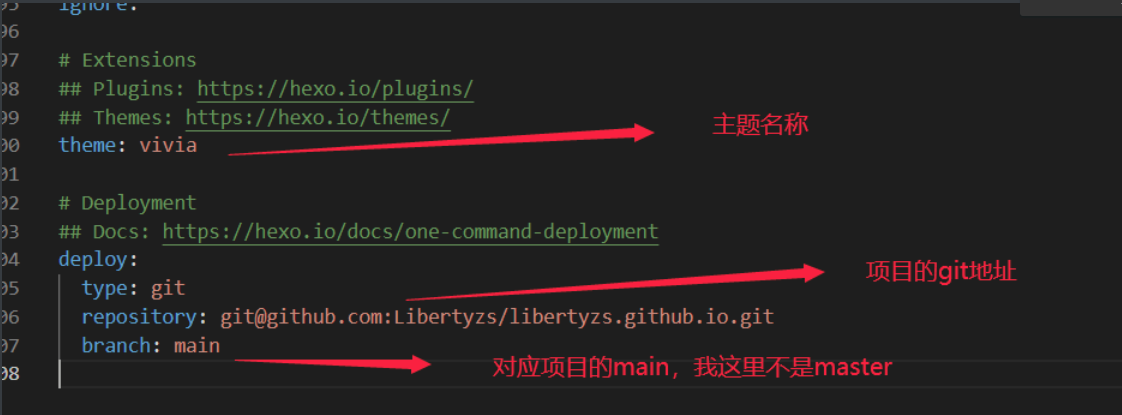
图2.1 git地址:

1
2
3
4
5
6
主题修改:
theme,我是用的是hexo的vivia。 https://hexo.io/themes/

部署设置:
deploy,按照上面的含义进行修改,

image-20230918181909511

图2.1

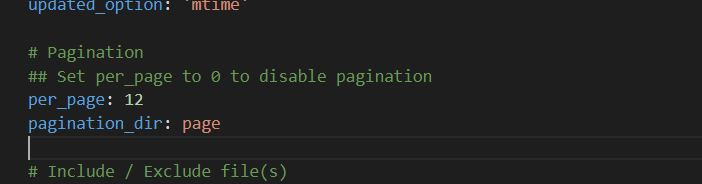
图2.2 分页数:

1
2
3
4
5
设置 6 的倍数。

## 设置每页显示的文章数,设置为0以禁用分页
per_page: 12
pagination_dir: page

image-20230918161202490

图2.2

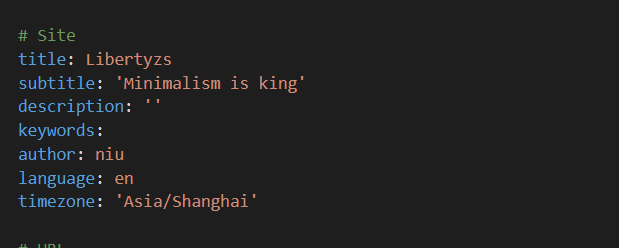
图2.3 基础信息:

1
2
3
4
5
6
7
8
9
10
11
12
13
14
15
# Site
# 设置博客的标题
title: Your Blog Title
# 子标题,可选
subtitle: 'xxxxx'
# 博客的描述,可选
description: ''
# 关键词,可选
keywords:
# 作者信息
author: Your Name
# 博客语言
language: en
# 时区
timezone: ''
image-20230918161453755
图2.3

3. 主题vivia配置文件

对修改部分进行中文注释

1
2
3
4
5
6
7
8
9
10
11
12
13
14
15
16
17
18
19
20
21
22
23
24
25
26
27
28
29
30
31
32
33
34
35
36
37
38
39
40
41
42
43
44
45
46
47
48
49
50
51
52
53
54
55
56
57
58
59
60
61
62
63
64
65
66
67
68
69
70
71
72
73
74
75
76
77
78
79
80
81
82
# Header
menu:
Home: /
Archives: /archives
About: /about
rss: /atom.xml

home:
style: default # default, detail
## 这里home页有两种设置:default:文章内容不展开。 detail:文章内容展开 (仅个人测试发现内容,勿喷)


favicon:
## 浏览器标签页的网站图标


# Banner 我的主题的背景图
banner:
enable: true # Display banner:是否开启,我这里开启
url: images/icon/banner.jpg
## 背景图片位置,这里在source目录下创建了一个images,并在里面放自己的图片。友情提示:放在source里面,不会被clean掉,苏鸥翼放心把一些静态资源放在这里,不过放的太多会影响部署速度。我这里只放了网站需要的几张图片
position: center
onAllPages: true # 是否所有的页面均显示背景图片

# Appearence
hue: 135 # 主题颜色,修改数值进行修改

# Sidebar
sidebar:
widgets: # Plugins to be enabled (profile, category, tag, archive, recent_posts)
normal: # Scroll along with the page
- profile
sticky: # Stick to the top of the page
- category
- tag
- archive
- recent_posts


# Widget behavior
archive_type: 'monthly'
recent_posts_limits: 5
categories:
max_depth: # Maximum depth of categories displayed in the widget (null for unlimited)

# Personal info
avatar: images/icon/icon_t2.jpg
## 图像照片,和上面的 brnner -url一样
author: Liberty
subtitle: Java Adventure
links:
- name: Twitter
icon: fa-brands fa-twitter # Find icon codes at https://fontawesome.com/search
url: https://twitter.com
- name: Steam
icon: fa-brands fa-steam
url: https://store.steampowered.com
- name: GitHub
icon: fa-brands fa-github
url: https://github.com

comment:
valine:
enable: true ## 评论
appId:
appKey:
placeholder: Just go go
pageSize: 10
highlight: true ##高亮显示
serverURLs:
# Other supported parameters can be added here if needed
# Visit https://valine.js.org/configuration.html for more details


#Analytics
gauges_analytics: true ## 选开
google_analytics: true #UA-xxxxxx
baidu_analytics: true # ddxxxxxxxxxxxxxxxxx In the https://hm.baidu.com/hm.js? Afterwards

#Copyright
copyright: #<a target="_blank" rel="noopener" href="http://creativecommons.org/licenses/by-nc-sa/4.0/" style="margin-inline:5px" title="本站采用知识共享署名-非商业性使用-相同方式共享4.0国际许可协议进行许可"><img src="https://img.shields.io/badge/Copyright-BY--NC--SA%204.0-d42328?style=flat&amp;logo=Claris"></a>

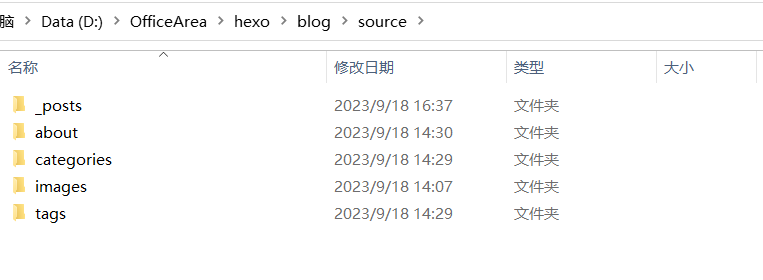
4.source文件夹操作

1
source文件内容在hexo clean时,不会被删除可以存放一些静态资源

image-20230918164112466

图4.1

typora图片导入

命令安装

1
2
3
4
5
npm install hexo-asset-img --save

cnpm install hexo-asset-img --save

npm install https://github.com/CodeFalling/hexo-asset-image --save

修改项目的 _config.yml配置

1
post_asset_folder: true

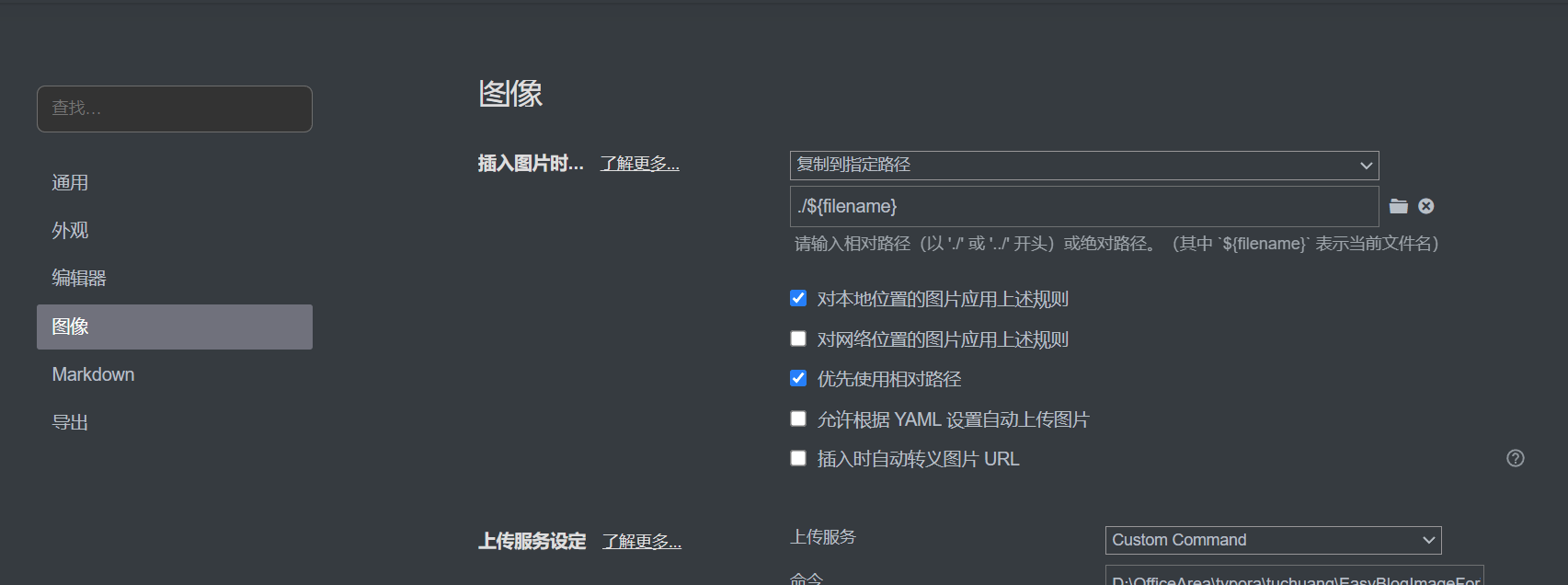
typora图像设置:如图4.2设置

image-20230918170857498

图4.2

使用方法:

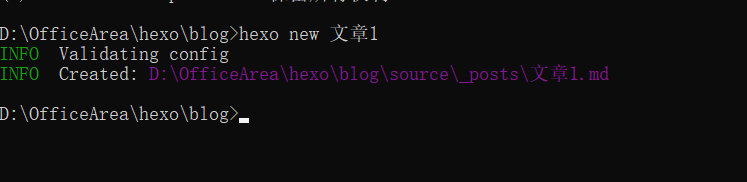
在hexo的根目录下输入 hexo new 文章名:如图4.3

image-20230918171040799

图4.3

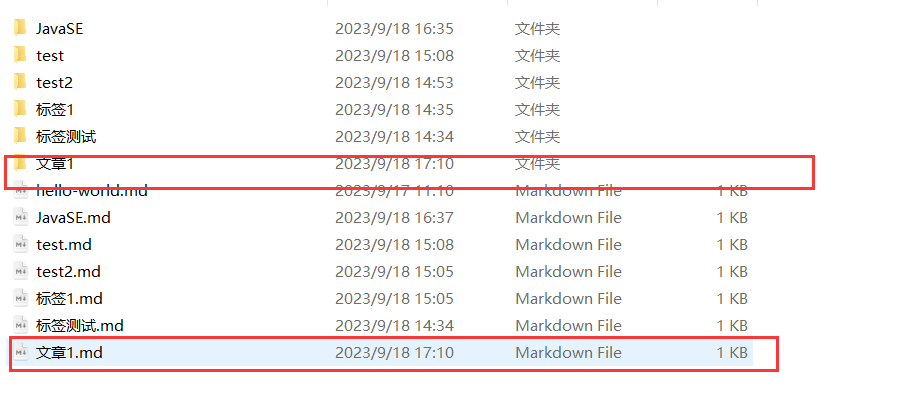
效果展示:使用成功后,会在_posts目录下生成一个md文章和一样名称的文件夹。

该文件夹用于存放你文章中的图片,也就是我们之前在typora中设置的./${filename}。

上传成功后,就可以成功在博客中显示

image-20230918171157028

图4.4

文章分类

命令成功后会出现图4.1 中的categories

1
hexo new page categories   ## 创建分类属性

成功回显:

1
INFO  Created: ~/blog/source/categories/index.md

修改categories目录下index.md内容如下:

1
2
3
4
5
---
title: 文章分类
date: 2023-09-27 13:47:40
type: "categories"
---

到这里就设置成功了

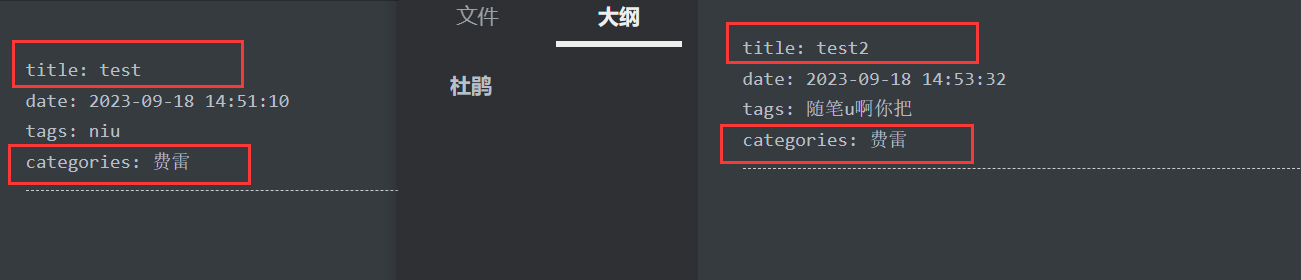
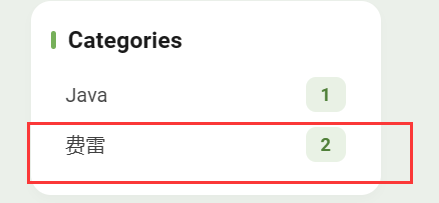
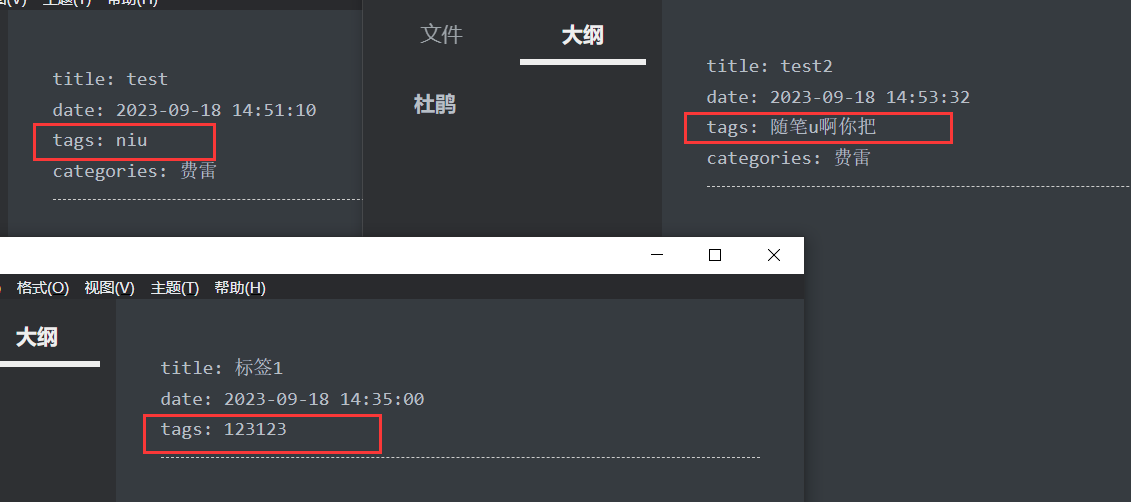
使用方法:图4.2 中test 和test2 中添加了categories属性,并设置内容费雷,那么这两篇文章就是一个类别下面的

1
2
3
4
5
6
7
8
9
10
11
12
13
# 这是默认的写法,给文章添加一个分类。
categories: 123
# 这会将文章分类123/456子分类目录下。
categories: [123, 456]
这会将文章分类到123/456子分类目录下。
categories:
- 123
- 456
多标签写法,文章被分类到123、456以及123的自分类789这3个分类下面,官方指定写法。
categories:
- [123]
- [456]
- [123, 789]

image-20230918165015402

图4.5

效果展示:

图4.3 为文章分类效果展示,这里可以看到费雷里面有两篇文章,实现了分类。

image-20230918165334725

图4.6

文章标签

命令成功,实现图4.1中的tags

1
hexo new page tags

成功回显:

1
INFO  Created: ~/blog/source/tags/index.md

修改tags目录下index.md内容如下:

1
2
3
4
5
---
title: 文章标签
date: 2023-09-27 13:47:40
type: "tags"
---

到这里就设置成功

使用方法:如图4.4 设置tags属性,并添加标签

1
2
3
4
tags:
- 123
- 456
tags: [123, 456]

image-20230918165703909

图4.7

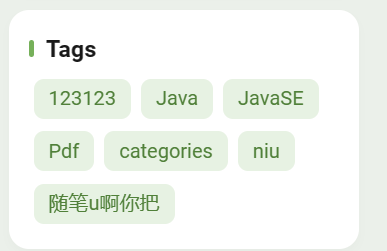
效果展示:图4.5 显示了所有文章的标签

image-20230918165811093

图4.8

静态图片

如图4.1 我在source下创建了images目录,并在里面放置了静态资源(图片)。并且在主题配置文件中,直接使用路径然后就可以访问到这个静态资源图片,并且在后续使用hexo clean 也不会删除这个资源。

pdf设置

命令:

1
2
3
npm install --save hexo-pdf 

cnpm install --save hexo-pdf

修改项目的 _config.yml配置

1
post_asset_folder: true

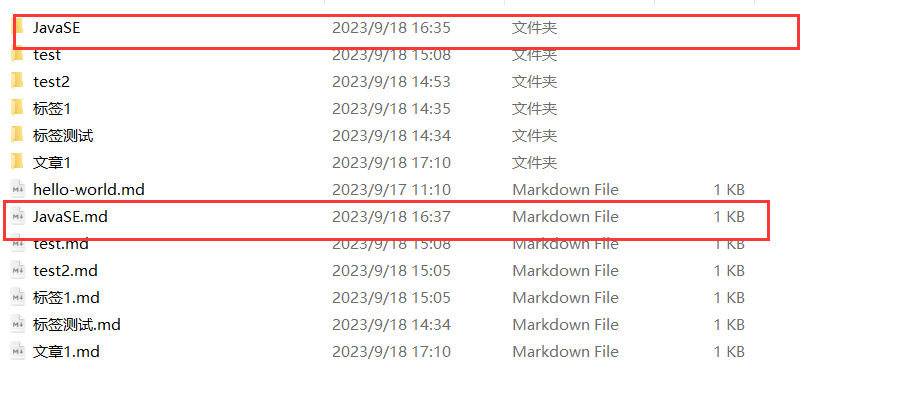
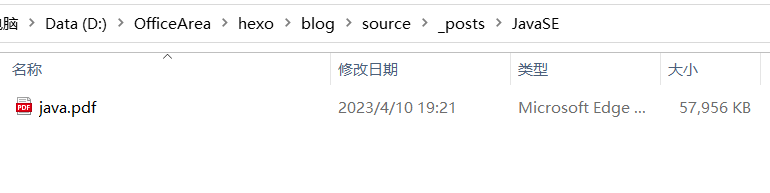
正常创建文章(在hexo根目录下):如图:

1
hexo new JavaSE

生成md 和文件夹

image-20230918171505269

图4.9

md文档内容设置

1
2
3
4
5
<!-- 在线显示PDF -->  <!-- 第一种方式,可调整pdf显示的大小,比较灵活 --> 

<embed src="./java.pdf" width="100%" height="750" type="application/pdf">

<!-- 第二种方式 --> <!-- {% pdf ./java.pdf %} -->

文件夹下设置:如图4.10

1
这里的内容在md与md 文章中src的需要一致

image-20230918171650828

图4.10

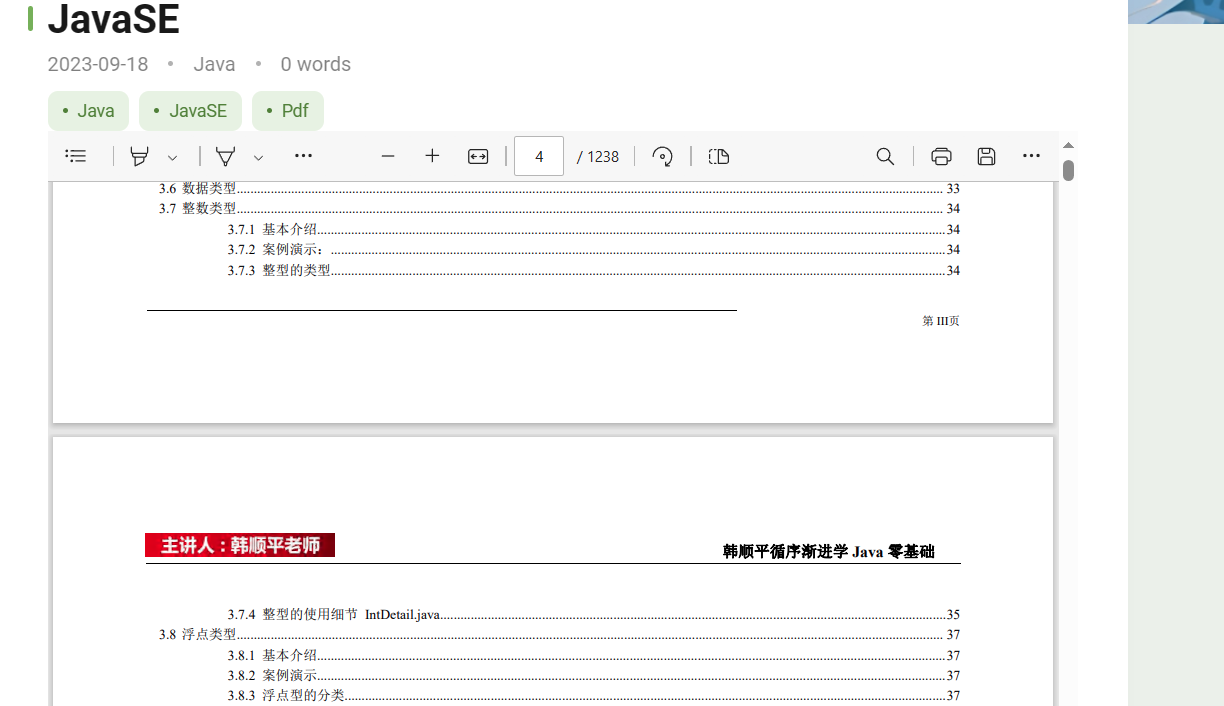
效果展示:如图4.11

image-20230918171812817

图4.11
Comments